One-Click Web Hosting & Domain Setup for Beginners
Starting a website used to be difficult. In the past, you needed technical skills, coding knowledge, and a lot of time. Today, things are much easier. Thanks to modern tools, you can set up your website with just one click.
If you are a beginner, this guide is perfect for you. It explains everything in simple steps. You will learn how to buy a domain, choose hosting, and launch your website without stress.
By the end of this guide, you will have your website live on the internet.
What Is Web Hosting?
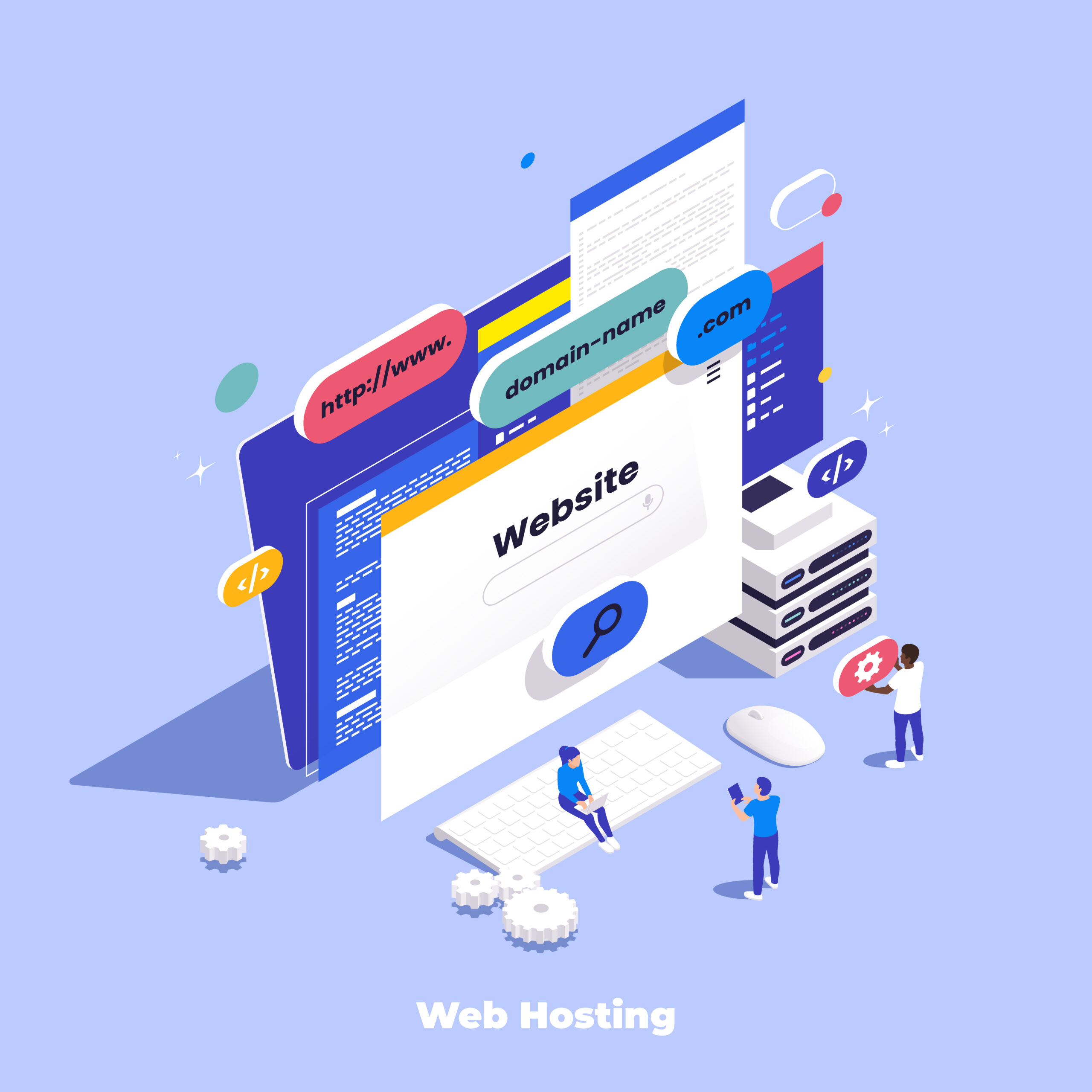
Web hosting is a service that stores your website files and makes them available online. Think of it like renting space on the internet.
When someone types your website name, your hosting provider shows your website to them.
Simple Example
- Your website = a house
- Domain = your address
- Hosting = the land your house is built on
Without hosting, your website cannot exist online.
What Is a Domain Name?
A domain name is your website address. It is what people type into their browser to visit your site.
Examples
Your domain should be:
- Short
- Easy to remember
- Related to your topic
Why Choose One-Click Setup?
One-click setup is the easiest way for beginners to start a website.
Benefits
- No coding required
- Fast setup (5–10 minutes)
- Beginner-friendly
- Automatic installation of tools
- Saves time and effort
Instead of doing many steps manually, everything is done for you.
What You Need Before Starting
Before you begin, make sure you have:
1. A Website Idea
Think about what your website will be about:
- Blog
- Business
- Portfolio
- Online store
2. A Domain Name Idea
Choose a name that matches your idea.
3. A Small Budget
Most hosting plans cost:
- $2 to $10 per month
Step-by-Step Guide to One-Click Setup
Now let’s go through the complete process.
Step 1: Choose a Hosting Provider
The first step is selecting a reliable hosting company.
What to Look For
- Fast speed
- Good uptime (99.9%)
- Free SSL certificate
- Free domain (often included)
- One-click installation
Popular Options
- Beginner-friendly platforms
- Affordable plans
- Easy dashboards
Choose a provider that offers “one-click WordPress install.”
Step 2: Register Your Domain
Once you choose a hosting provider, you can register your domain.
Tips for Choosing a Domain
- Keep it short
- Avoid numbers and hyphens
- Use .com if possible
- Make it easy to spell
Example
Bad: best-online-business-2026-site.com
Good: smartbiz.com
Many hosting providers give a free domain for the first year.
Step 3: Choose a Hosting Plan
Most providers offer several plans.
Common Types
- Basic Plan – Best for beginners
- Standard Plan – More features
- Premium Plan – For growing websites
Recommendation
Start with the basic plan. You can upgrade later.
Step 4: Complete Your Purchase
Fill in your details and complete payment.
What You’ll Enter
- Name
- Password
- Payment details
After payment, your account will be created instantly.
Step 5: Access Your Hosting Dashboard
After signing up, log in to your hosting account.
You will see a control panel (dashboard). This is where you manage your website.
Common Features
- Domain management
- File manager
- Email setup
- One-click installer
Step 6: Use One-Click Install (WordPress)
This is the most important step.
What Is WordPress?
WordPress is a tool that helps you build websites easily.
How to Install
- Find “One-Click Install”
- Select WordPress
- Click “Install”
- Choose your domain
- Set username and password
That’s it. Your website is now installed.
Step 7: Log Into Your Website
After installation, you will get a login link.
Example:
www.yoursite.com/wp-admin
Enter your username and password.
Now you are inside your website dashboard.
Step 8: Choose a Theme
A theme controls how your website looks.
How to Choose a Theme
- Go to Appearance → Themes
- Click “Add New”
- Browse free themes
- Click “Install”
- Click “Activate”
Tips
- Choose a simple design
- Make sure it is mobile-friendly
- Pick fast-loading themes
Step 9: Customize Your Website
Now you can change how your website looks.
What You Can Edit
- Logo
- Colors
- Fonts
- Layout
Go to:
Appearance → Customize
Make your site match your style or brand.
Step 10: Create Important Pages
Every website needs basic pages.
Must-Have Pages
- Home
- About
- Contact
- Privacy Policy
How to Create
- Go to Pages → Add New
- Add title and content
- Click Publish
Step 11: Install Essential Plugins
Plugins add features to your website.
Important Plugins
- SEO plugin (for search engines)
- Security plugin
- Speed optimization plugin
- Backup plugin
How to Install
- Go to Plugins → Add New
- Search plugin
- Click Install
- Click Activate
Step 12: Add Content
Content is what your website is about.
Types of Content
- Blog posts
- Images
- Videos
- Products
Tips
- Write simple and clear
- Use short paragraphs
- Add headings
Step 13: Make Your Website Mobile-Friendly
Most users visit websites on phones.
How to Check
- Use responsive themes
- Test on mobile devices
Tips
- Use large text
- Avoid clutter
- Keep navigation simple
Step 14: Optimize for SEO
SEO helps your website appear on search engines.
Basic SEO Tips
- Use your keyword in titles
- Write clear headings
- Add meta descriptions
- Use internal links
Example Keyword Use
“One-Click Web Hosting & Domain Setup”
Use it naturally in your content.
Step 15: Launch Your Website
Before launching, check everything.
Checklist
- All pages are working
- No broken links
- Fast loading speed
- Mobile-friendly
Once ready, share your website with the world.
Common Mistakes to Avoid
1. Choosing a Bad Domain
Avoid long or confusing names.
2. Ignoring Security
Always use SSL and security plugins.
3. Not Backing Up
Regular backups protect your site.
4. Overloading Plugins
Too many plugins slow down your website.
5. Skipping SEO
Without SEO, people won’t find your site.
Tips for Beginners
Start Simple
Don’t try to do everything at once.
Learn Step by Step
Focus on one task at a time.
Keep Updating
Add new content regularly.
Be Patient
Success takes time.
Benefits of Having a Website
1. Online Presence
People can find you easily.
2. Business Growth
Sell products or services.
3. Personal Branding
Show your skills and ideas.
4. Passive Income
Earn money through ads or sales.
How Long Does Setup Take?
With one-click setup, you can create a website in:
- 10 to 30 minutes
This is much faster than traditional methods.
Cost Breakdown
Typical Costs
- Domain: Free or $10/year
- Hosting: $2–$10/month
Total yearly cost:
Around $30–$100
Is One-Click Setup Safe?
Yes, it is safe if you use trusted hosting providers.
Safety Tips
- Use strong passwords
- Enable SSL
- Install security plugins
Who Should Use One-Click Setup?
This method is perfect for:
- Beginners
- Students
- Small business owners
- Bloggers
You don’t need technical skills.
Future of Website Setup
Technology is improving fast.
What to Expect
- Faster setup tools
- AI website builders
- More automation
In the future, creating a website will be even easier.
You can also read : Fastest Web Hosting & Domain Providers for New Websites
Conclusion
Setting up a website is no longer hard. With one-click web hosting and domain setup, anyone can create a website in minutes.
This guide showed you every step, from choosing a domain to launching your site. You don’t need coding skills or technical knowledge. Just follow the steps carefully.
Start simple, keep learning, and improve your website over time. With patience and effort, your website can grow into something successful.
Now is the best time to start. Take action today and build your online presence.